Amazon Redshift is a fast, scalable, secure, and fully managed cloud data warehouse that makes it simple and cost-effective to analyze all of your data using standard SQL and your existing business intelligence (BI) tools. Tens of thousands of customers today rely on Amazon Redshift to analyze exabytes of data and run complex analytical queries, making it the most widely used cloud data warehouse.
Data ingestion is the process of getting data from the source system to Amazon Redshift. This can be done by using one of many AWS cloud-based ETL tools like AWS Glue, Amazon EMR, or AWS Step Functions, or you can simply load data from Amazon Simple Storage Service (Amazon S3) to Amazon Redshift using the COPY command. A COPY command is the most efficient way to load a table because it uses the Amazon Redshift massively parallel processing (MPP) architecture to read and load data in parallel from a file or multiple files in an S3 bucket.
Now SQL users can easily automate data ingestion from Amazon S3 to Amazon Redshift with a simple SQL command using the Amazon Redshift auto-copy preview feature. COPY statements are triggered and start loading data when Amazon Redshift auto-copy detects new files in the specified Amazon S3 paths. This also ensures end-users have the latest data available in Amazon Redshift shortly after the source data is available.
This post shows you how to easily build continuous file ingestion pipelines in Amazon Redshift using auto-copy when source files are located on Amazon S3 using a simple SQL command. In addition, we show you how to enable auto-copy using copy jobs, how to monitor jobs, considerations, and best practices.
Overview of the auto-copy feature in Amazon Redshift
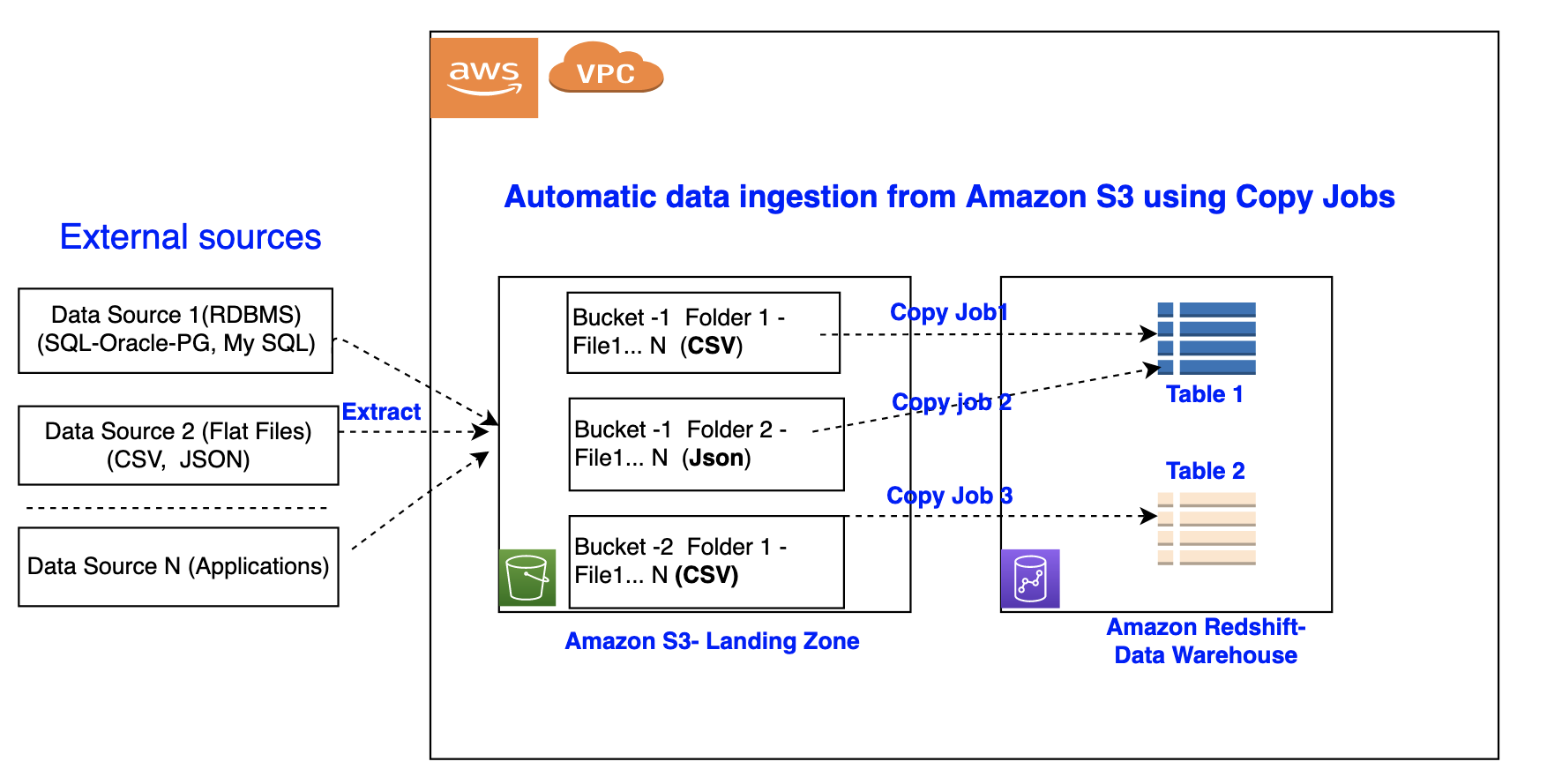
The auto-copy feature in Amazon Redshift simplifies automatic data loading from Amazon S3 with a simple SQL command. You can enable Amazon Redshift auto-copy by creating copy jobs. A copy job is a database object that stores, automates, and reuses the COPY statement for newly created files that land in the S3 folder.
The following diagram illustrates this process.
Copy jobs have the following benefits:
- SQL users such as data analysts can now load data from Amazon S3 automatically without having to build a pipeline or using an external framework
- Copy jobs offer continuous and incremental data ingestion from an Amazon S3 location without the need to implement a custom solution
- This functionality comes at no additional cost
- Existing COPY statements can be converted into copy jobs by appending the
JOB CREATE<job\_name> parameter - It keeps track of all loaded files and prevents data duplication
- It can be easily set up using a simple SQL statement and any JDBC or ODBC client
Prerequisites
To get started with auto-copy preview, you need the following prerequisites:
- An AWS account
- An Amazon Redshift cluster with a maintenance track of
PREVIEW\_AUTOCOPY\_2022


The Amazon Redshift auto-copy support from Amazon S3 is available as a preview for provisioned clusters in the following AWS Regions: US East (Ohio), US East (N. Virginia), US West (Oregon), Asia Pacific (Tokyo), Europe (Ireland), and Europe (Stockholm). Please note that for the preview track, restore from snapshot is not supported.
You can refer to the SQL notebook redshift-auto-copy-preview-demo-sql-notebook.ipynb for the SQL statements used in this post.
Set up copy jobs
In this section, we demonstrate how to automate data loading of files from Amazon S3 into Amazon Redshift. With the existing COPY syntax, we add the JOB CREATE parameter to perform a one-time setup for automatic file ingestion. See the following code:
Auto ingestion is enabled by default on copy jobs.
Automate ingestion from a single data source
With a copy job, you can automate ingestion from a single data source by creating one job and specifying the path to the S3 objects that contain the data. The S3 object path can reference a set of folders that have the same key prefix.
In this example, we have multiple files that are being loaded on a daily basis containing the sales transactions across all the stores in the US. Each day’s sales transactions are loaded to their own folder in Amazon S3.
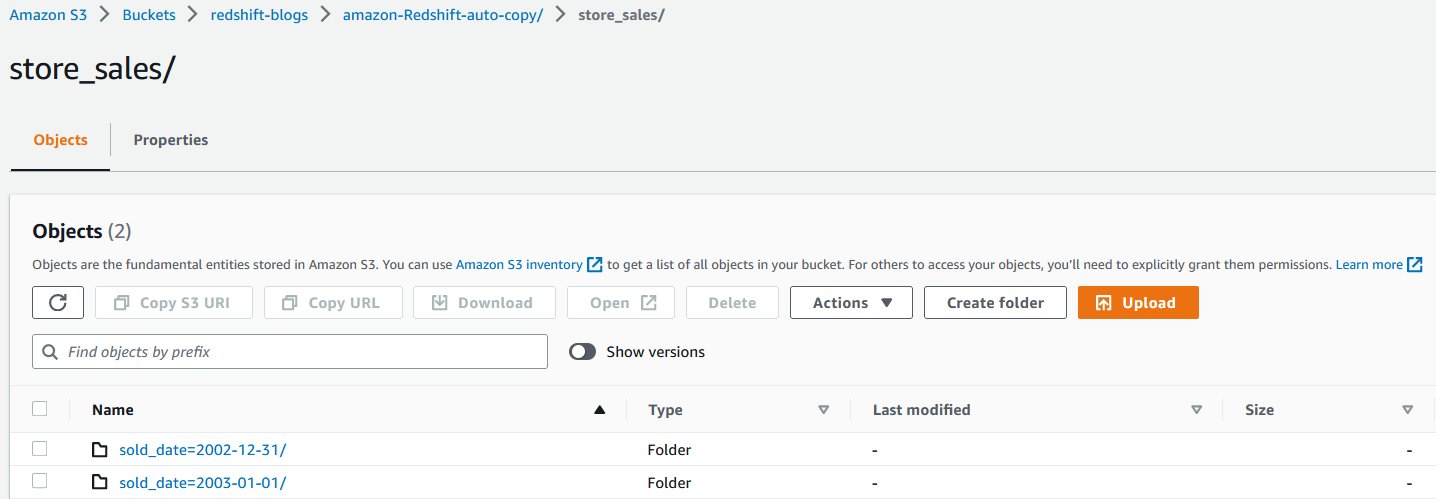
Each folder contains multiple gzip-compressed files.
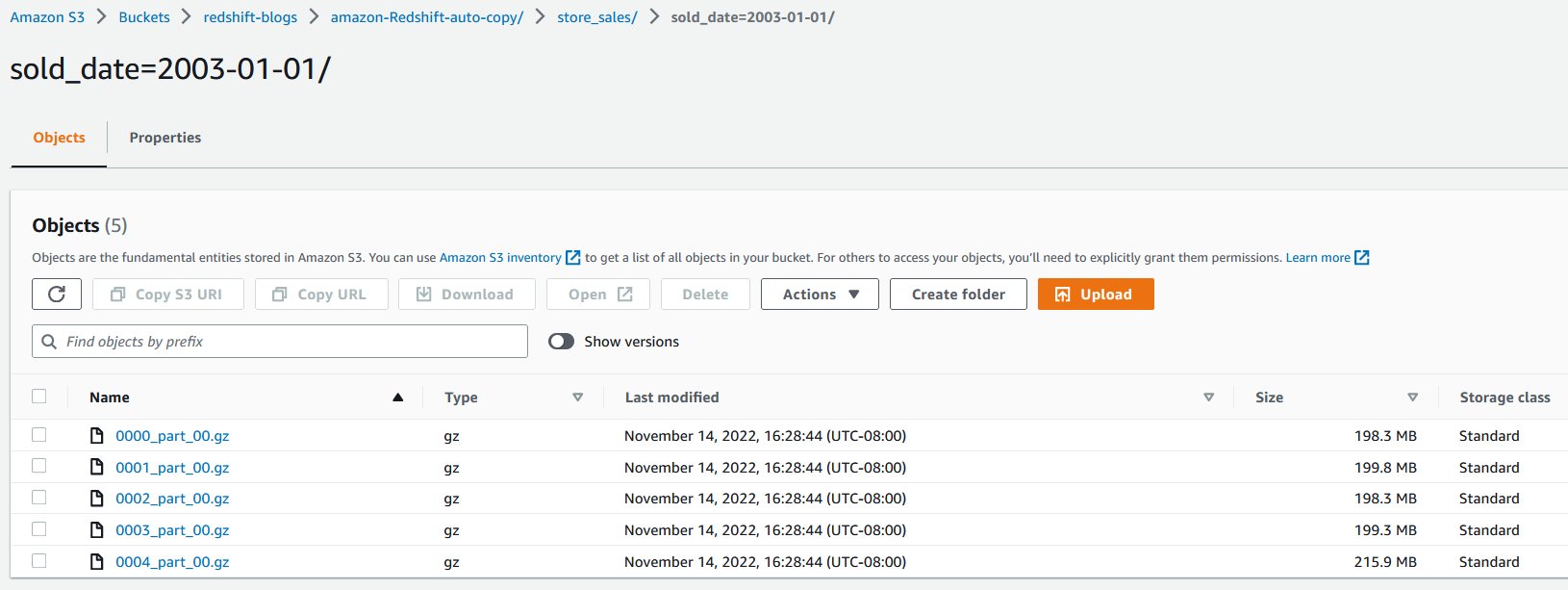
The following code creates the store\_sales table:
Next, we create the copy job to automatically load the gzip-compressed files into the store\_sales table:
When the copy job is created, it automatically loads the existing gzip-compressed files located in the S3 object path specified in the command to the store\_sales table.
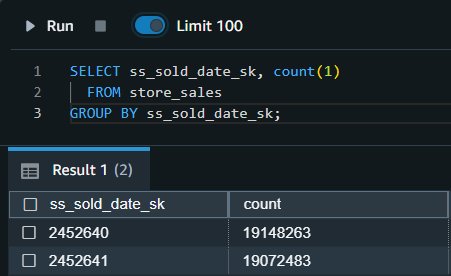
Let’s run a query to get the daily total of sales transactions across all the stores in the US:
The output shown comes from the transactions sold on 2002-12-31 and 2003-01-01, respectively.
The following day, incremental sales transactions data are loaded to a new folder in the same S3 object path.
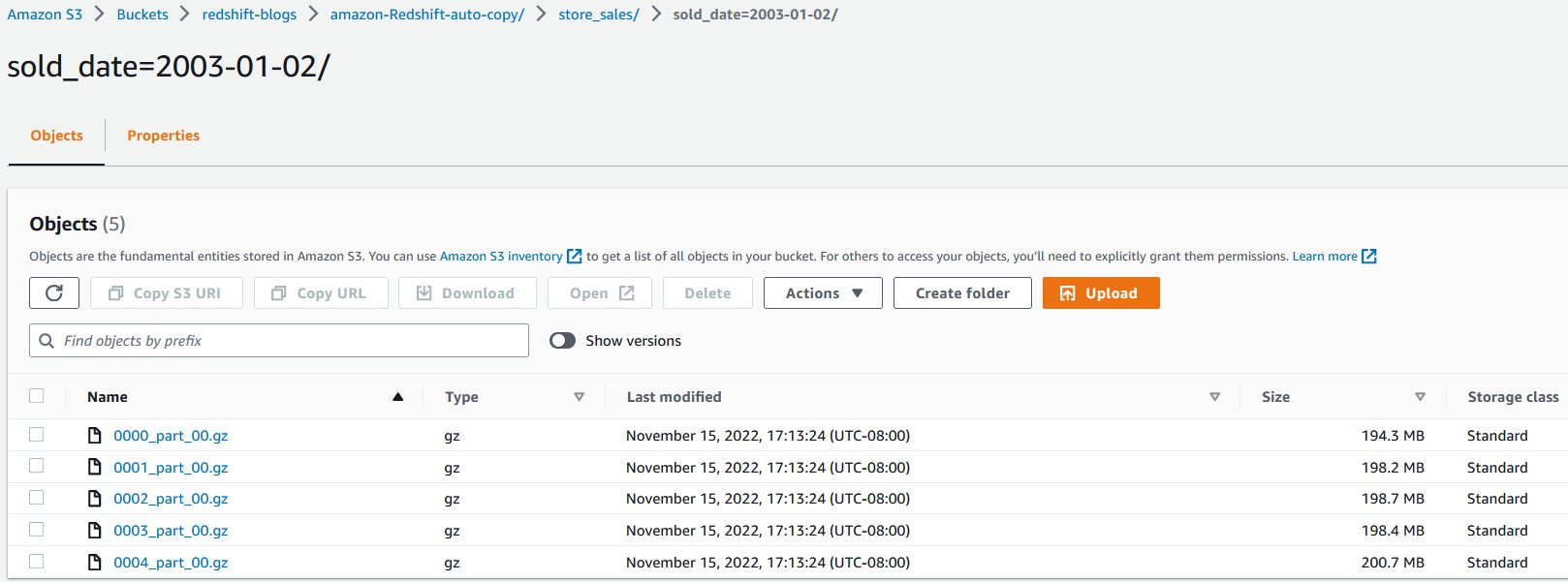
As new files arrive to the same S3 object path, the copy job automatically loads the unprocessed files to the store\_sales table in an incremental fashion.
All new sales transactions for 2003-01-02 are automatically ingested, which can be verified by running the following query:

Automate ingestion from multiple data sources
We can also load an Amazon Redshift table from multiple data sources. When using a pub/sub pattern where multiple S3 buckets populate data to an Amazon Redshift table, you have to maintain multiple data pipelines for each source/target combination. With new parameters in the COPY command, this can be automated to handle data loads efficiently.
In the following example, the Customer\_1 folder has Green Cab Company sales data, and the Customer\_2 folder has Red Cab Company sales data. We can use the COPY command with the JOB parameter to automate this ingestion process.
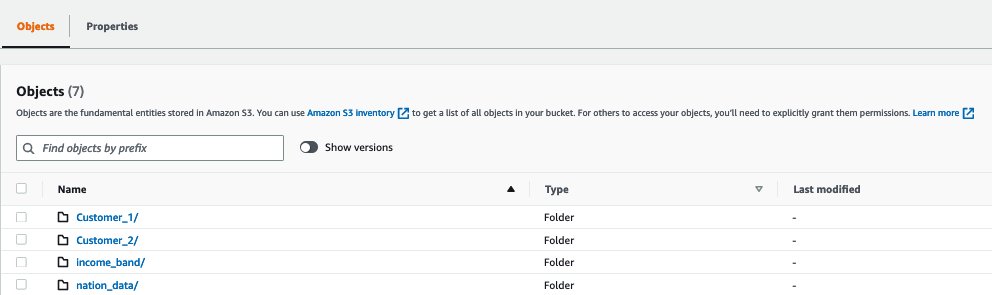
The following screenshot shows sample data stored in files. Each folder has similar data but for different customers.

The target for these files in this example is the Amazon Redshift table cab\_sales\_data.
Define the target table cab\_sales\_data:
You can define two copy jobs as shown in the following code to handle and monitor ingestion of sales data belonging to different customers , in our case Customer\_1 and Customer\_2. These jobs monitor the Customer\_1 and Customer\_2 folders and load any new files that are added here.
Each customer is assigned its own vendorid, as shown in the following output:

Manually run a copy job
There might be scenarios wherein the copy job needs to be paused, meaning it needs to stop looking for new files, for example, to fix a corrupted data pipeline at the data source.
In that case, either use the COPY JOB ALTER command to set AUTO to OFF or create a new COPY JOB with AUTO OFF. Once this is set, auto copy will no longer look for new files.
If in case required, users can manually invoke COPY JOB which will do the work and ingest if any new files found.
COPY JOB RUN <Copy Job Name>
You can disable “AUTO ON” in the existing copy job using the following command:
COPY JOB ALTER <Copy Job Name> AUTO OFF
The following table compares the syntax and data duplication between a regular copy statement and the new auto-copy job.
| . | Copy | Auto-Copy Job (preview) |
| Syntax | COPY <table-name> | COPY <table-name> |
| Data Duplication | If it is run multiple times against the same S3 folder, it will load the data again, resulting in data duplication. | It will not load the same file twice, preventing data duplication. |
For the copy job preview, support on other data formats will be expanded.
Error handling and monitoring for copy jobs
Copy jobs continuously monitor the S3 folder specified during job creation and perform ingestion whenever new files are created. New files created under the S3 folder are loaded exactly once to avoid data duplication.
By default, if there are any data or format issues with the specific files, the copy job will fail to ingest the files with a load error and log details to the system tables. The copy job will remain AUTO ON with new data files and will continue to ignore previously failed files.
Amazon Redshift provides the following system tables for users to monitor or troubleshoot copy jobs as needed:
- List copy jobs – Use SYS\_COPY\_JOB to list all the copy jobs stored in the database:

- Get a summary of a copy job – Use the SYS\_LOAD\_HISTORY view to get the aggregate metrics of a copy job operation by specifying the
copy\_job\_id. It shows the aggregate metrics of all the files that have been processed by a copy job.

- Get details of a copy job – Use STL\_LOAD\_COMMITS to get the status and details of each file that was processed by a copy job:

- Get exception details of a copy job – Use STL\_LOAD\_ERRORS to get the details of files that failed to ingest from a copy job:

Copy job best practices
In a copy job, when a new file is detected and ingested (automatically or manually), Amazon Redshift stores the file name and doesn’t run this specific job when a new file is created with the same file name.
The following are the recommended best practices when working with files using the copy job:
- Use unique file names for each file in a copy job (for example,
2022-10-15-batch-1.csv). However, you can use the same file name as long as it’s from different copy jobs:- job\_customerA\_sales –
s3://redshift-blogs/sales/customerA/2022-10-15-sales.csv - job\_customerB\_sales –
s3://redshift-blogs/sales/customerB/2022-10-15-sales.csv
- job\_customerA\_sales –
- Do not update file contents. Do not overwrite existing files. Changes in existing files will not be reflected to the target table. The copy job doesn’t pick up updated or overwritten files, so make sure they’re renamed as new file names for the copy job to pick up.
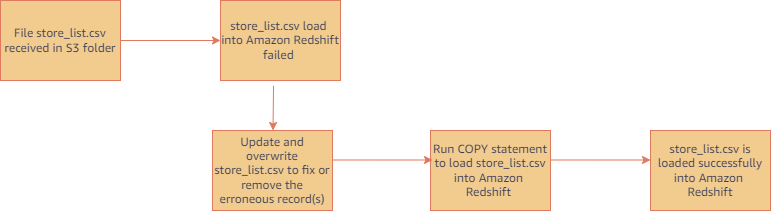
- Run regular COPY statements (not a job) if you need to ingest a file that was already processed by your copy job. (COPY without a copy job doesn’t track loaded files.) For example, this is helpful in scenarios where you don’t have control of the file name and the initial file received failed. The following figure shows a typical workflow in this case.
- Delete and recreate your copy job if you want to reset file tracking history and start over.
Copy job considerations
During the preview, here are the main things to consider when using auto-copy:
- The copy job must be created using an empty S3 folder (no existing files)
- The following features are unsupported:
- MAXERROR parameter
- manifest files
- key-based access control
- columnar data format (Parquet, ORC, RCFile, SequenceFile)
- use of
IAM\_ROLEdefault
For additional details on other considerations for auto-copy preview, refer to the AWS documentation.
Customer feedback
GE Aerospace is a global provider of jet engines, components, and systems for commercial and military aircraft. The company has been designing, developing, and manufacturing jet engines since World War I.
“GE Aerospace uses AWS analytics and Amazon Redshift to enable critical business insights that drive important business decisions. With the support for auto-copy from Amazon S3, we can build simpler data pipelines to move data from Amazon S3 to Amazon Redshift. This accelerates our data product teams’ ability to access data and deliver insights to end users. We spend more time adding value through data and less time on integrations.”
– Alcuin Weidus Sr Principal Data Architect at GE Aerospace
Conclusion
This post demonstrated how to automate data load from Amazon S3 to Amazon Redshift using the auto-copy preview feature. This new functionality helps make Amazon Redshift data ingestion easier than ever, and will allow SQL users to get access to the most recent data using a simple SQL command.
As an analysts or SQL users, you can begin ingesting data to Redshift from Amazon S3 with simple SQL commands and gain access to the most up-to-date data without the need for third-party tools or custom implementation.
About the authors
 Jason Pedreza is an Analytics Specialist Solutions Architect at AWS with data warehousing experience handling petabytes of data. Prior to AWS, he built data warehouse solutions at Amazon.com. He specializes in Amazon Redshift and helps customers build scalable analytic solutions.
 Nita Shah is an Analytics Specialist Solutions Architect at AWS based out of New York. She has been building data warehouse solutions for over 20 years and specializes in Amazon Redshift. She is focused on helping customers design and build enterprise-scale well-architected analytics and decision support platforms.
 Eren Baydemir, a Technical Product Manager at AWS, has 15 years of experience in building customer-facing products and is currently focusing on data lake and file ingestion topics in the Amazon Redshift team. He was the CEO and co-founder of DataRow, which was acquired by Amazon in 2020.
 Eesha Kumar is an Analytics Solutions Architect with AWS. He works with customers to realize the business value of data by helping them build solutions using the AWS platform and tools.
 Satish Sathiya is a Senior Product Engineer at Amazon Redshift. He is an avid big data enthusiast who collaborates with customers around the globe to achieve success and meet their data warehousing and data lake architecture needs.
 Hangjian Yuan is a Software Development Engineer at Amazon Redshift. He’s passionate about analytical databases and focuses on delivering cutting-edge streaming experiences for customers.