Amazon Redshift Serverless makes it simple to run and scale analytics without having to manage your data warehouse infrastructure. Developers, data scientists, and analysts can work across databases, data warehouses, and data lakes to build reporting and dashboarding applications, perform real-time analytics, share and collaborate on data, and even build and train machine learning (ML) models with Redshift Serverless.
Tags allows you to assign metadata to your AWS resources. You can define your own key and value for your resource tag, so that you can easily manage and filter your resources. Tags can also improve transparency and map costs to specific teams, products, or applications. This way, you can raise cost awareness and also make teams and users accountable for their own cost and usage.
You can now use tagging in Redshift Serverless to categorize the following resources based on your grouping needs:
- Namespace – A collection of database objects and users
- Workgroup – A collection of compute resources
- Snapshot – Point-in-time backups of a cluster
- Recovery point – Recovery points in Redshift Serverless are created every 30 minutes and saved for 24 hours
When using Redshift Serverless, you may have to manage data across many business departments, environments, and billing groups. In doing so, you’re usually faced with one of the following tasks:
- Cost allocation and financial management – You want to know what you’re spending on AWS for a given project, line of business, or environment
- Operations support and incident management – You want to send issues to the right teams and users
- Access control – You want to constrain user access to certain resources
- Security risk management – You want to group resources based on their level of security or data sensitivity and make sure proper controls are in place
In this post, we focus on tagging Redshift Serverless resources for cost allocation and reporting purposes. Knowing where you have incurred costs at the resource, workload, team, and organization level enhances your ability to budget and manage cost.
Solution overview
Let’s say that your company has two departments: marketing and finance. Each department has multiple cost centers and environments, as illustrated in the following figure. In AWS Cost Explorer, you want to create cost reports for Redshift Serverless by department, environment, and cost center.

We start with creating and applying user-defined tags to Amazon Serverless workgroups for respective departments, environments, and cost centers. You can use both the AWS Command Line Interface (AWS CLI) and Redshift Serverless console to tag serverless resources.
The high-level steps are as follows:
- Create tags.
- View and edit tags.
- Set up cost allocation tags.
- Create cost reports.
Create tags
To create tags, complete the following steps:
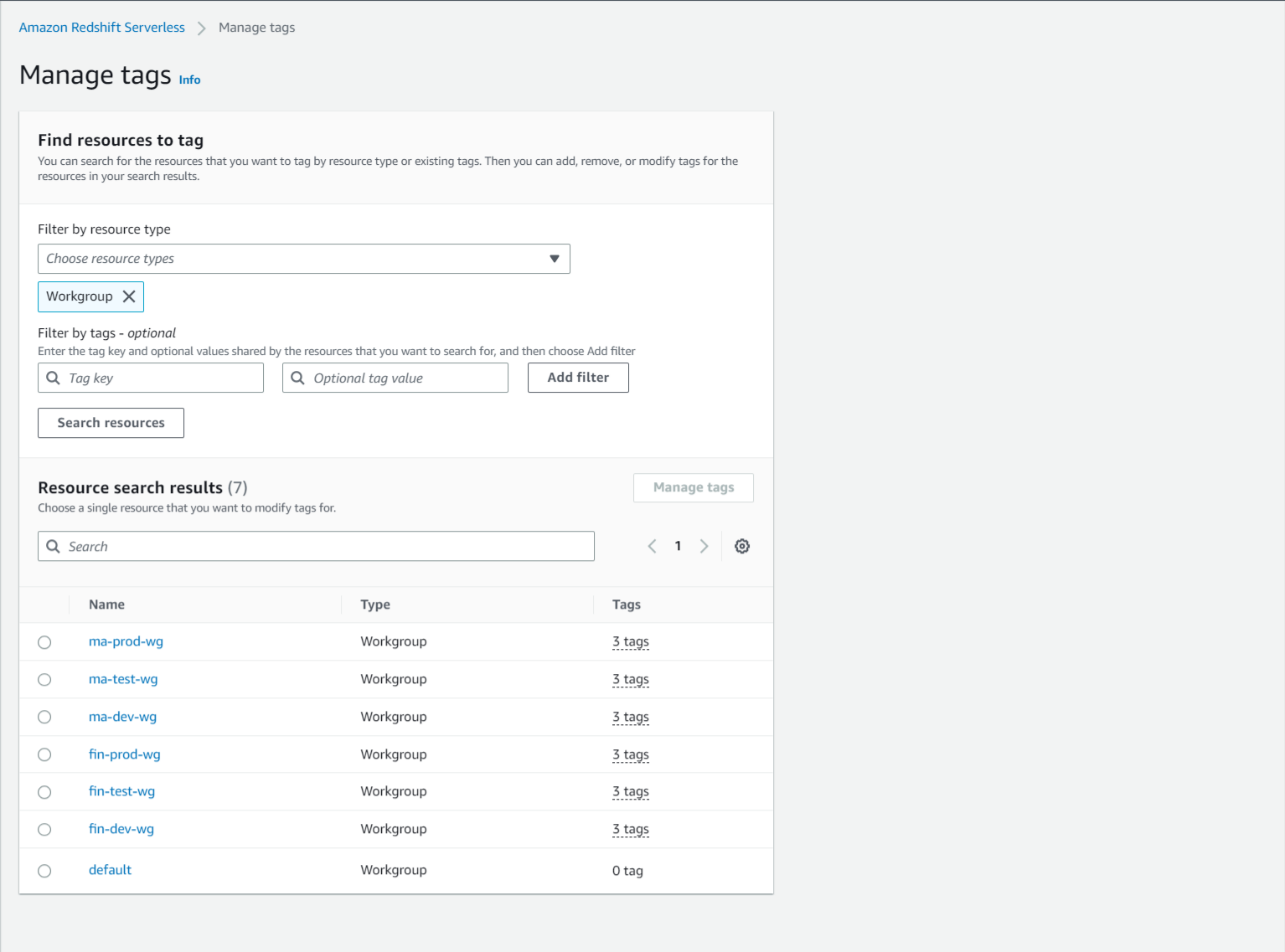
- On the Amazon Redshift console, choose Manage tags in the navigation pane.

- For Filter by resource type, you can filter by Workgroup, Namespace, Snapshot, and Recovery Point.
- Optionally, you can search for resources by an existing tag by entering values for Tag key or Tag value. For this post, we don’t include any tag filters, so we can view all the resources across our account.

- Select your resource from the search results and choose Manage tags to customize the tag key and value parameters.
Here, you can add new tags, remove tags, save changes, and cancel your changes if needed.
- Because we want to allocate cost across the various departments, we add a new key called
departmentand a new value calledmarketing.
- Choose Save changes.

- Confirm the changes by choosing Apply changes.

For more details on tagging, refer to Tagging resources overview.
View and edit tags
If you already have resources such as workgroups (listed on the Workgroup configuration page) or snapshots (listed on the Data backup page), you can create new tags or edit existing tags on the given resource. In the following example, we manage tags on an existing workgroup.
- On the Amazon Redshift console, choose Workgroup configuration in the navigation pane.
- Select your workgroup and on the Actions menu, choose Manage tags.

Now we can remove existing tags or add new tags. For our use case, let’s assume that the marketing department is no longer using the default workgroup, so we want to remove the current tag.
- Choose Remove next to the marketing tag.

We are given the option to choose Undo if needed.
- Choose Save changes and then Apply the changes to confirm.

After we apply the tags, we can view the full list of resources. The number of tags applied to each resource is found in the Tags column.
Set up cost allocation tags
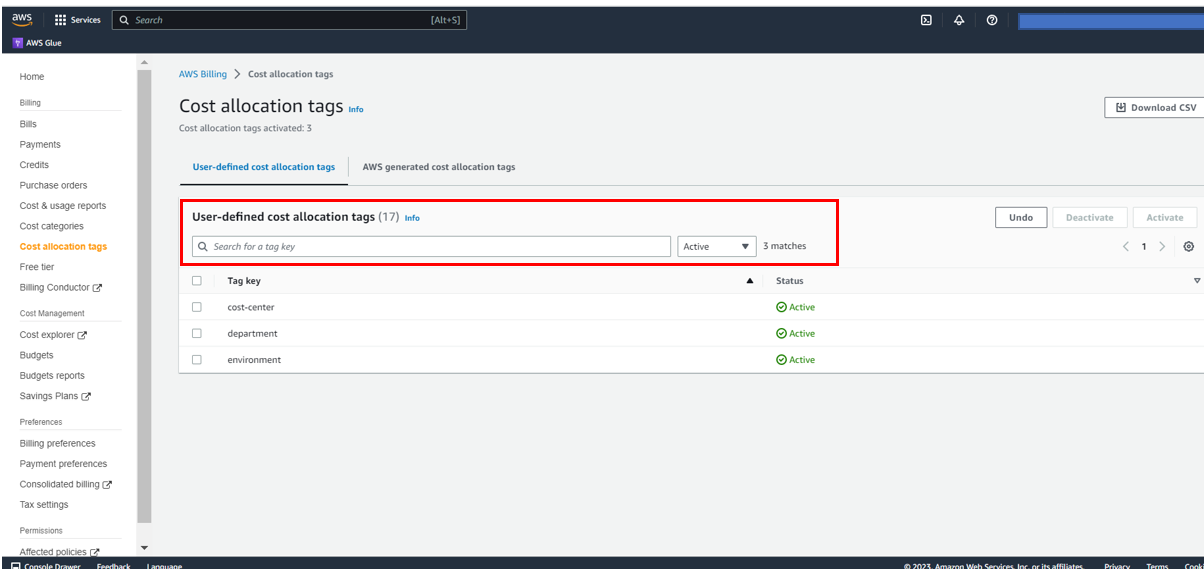
After you create and apply the user-defined tags to your Redshift Serverless workgroups, it can take up to 24 hours for the tags to appear on your cost allocation tags page for activation. You can activate tags by using the AWS Billing console for cost allocation tracking with the following steps:
- On the AWS Billing console, choose Cost allocation tags in the navigation pane.
- Under User-defined cost allocation tags¸ select the tags you created and applied (for this example,
cost-center). - Choose Activate.

After we activate all the tags we created, we can view the full list by choosing Active on the drop-down menu.
Create cost reports
After you activate the cost allocation tags, they appear on your cost allocation reports in Cost Explorer.
Cost Explorer helps you manage your AWS costs by giving you detailed insights into the line items in your bill. In Cost Explorer, you can visualize daily, monthly, and forecasted spend by combining an array of available filters. Filters allow you to narrow down costs according to AWS service type, linked accounts, and tags.
The following screenshot shows the preconfigured reports in Cost Explorer.

To create custom reports for your cost and usage data, complete the following steps:
- On the AWS Cost Management console, choose Reports in the navigation pane.
- Choose Create new report.
- Select the report type you want to create (for this example, we select Cost and usage).
- Choose Create Report.

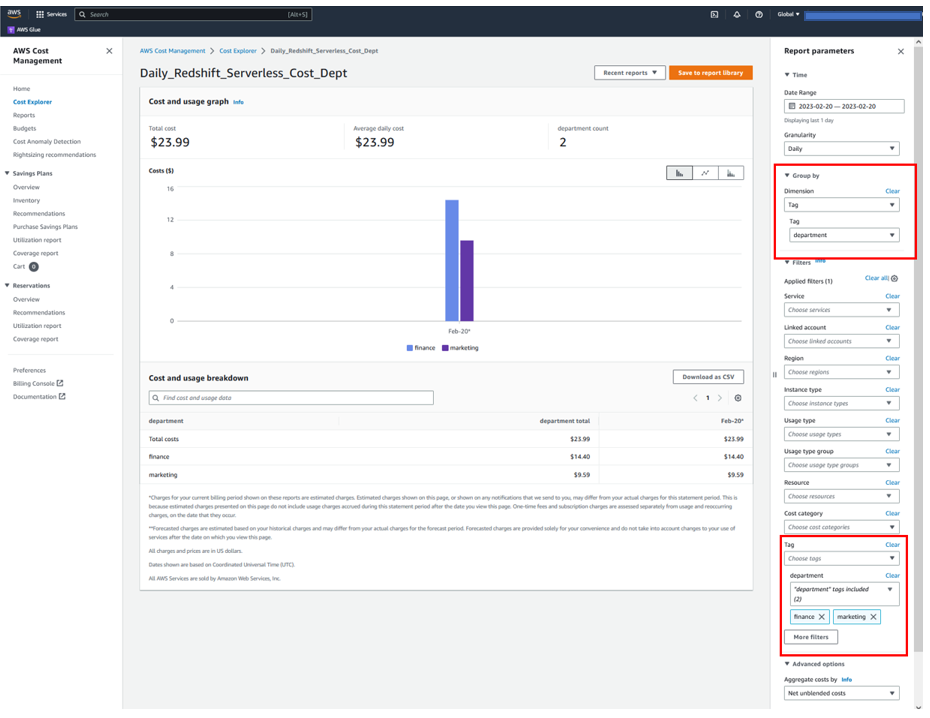
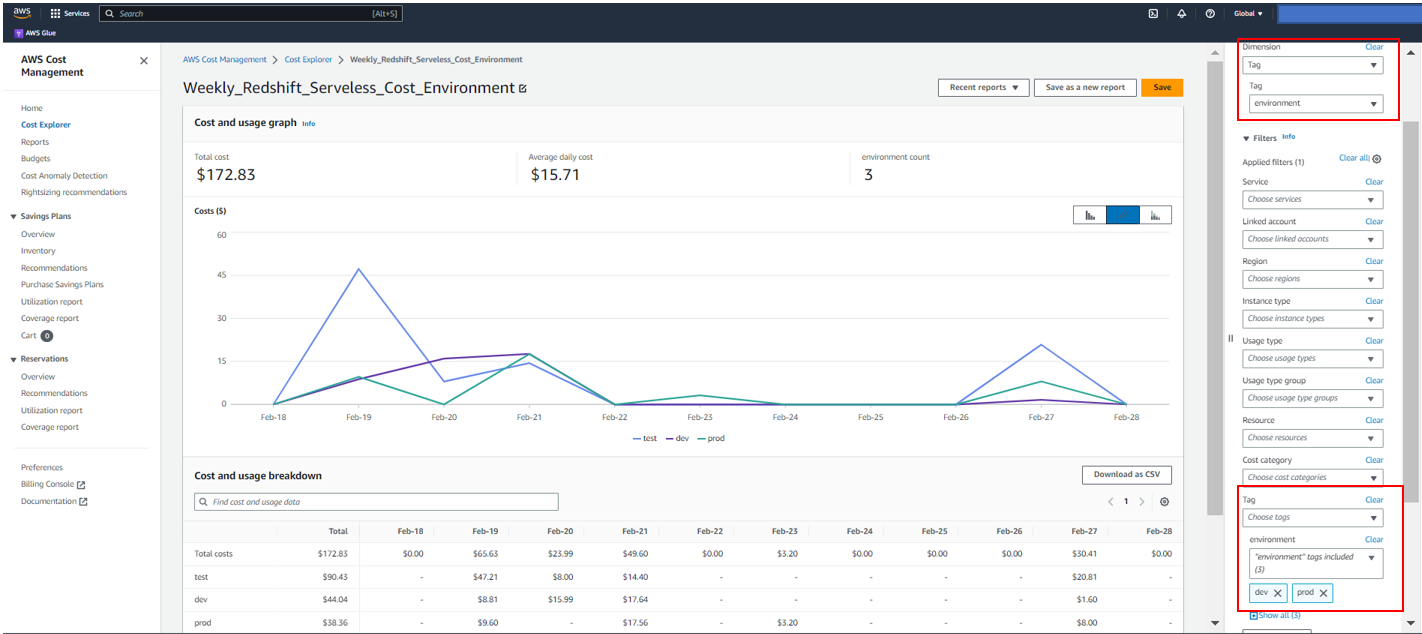
- To view weekly Redshift Serverless cost by cost center, choose the applicable settings in the Report parameters pane. For this post, we group data by the cost-center tag and filter data by the department tag.
- Save the report for later use by choosing Save to report library.

- Enter a name for your report, then choose Save report.

The following screenshot shows a sample report for daily Redshift Serverless cost by department.
The following screenshot shows an example report of weekly Redshift Serverless cost by environment.
Conclusion
Tagging resources in Amazon Redshift helps you maintain a central place to organize and view resources across the service for billing management. This feature saves you hours of manual work you would spend in grouping your Amazon Redshift resources via a spreadsheet or other manual alternatives.
For more tagging best practices, refer to Tagging AWS resources.
About the Authors
 Sandeep Bajwa is a Sr. Analytics Specialist based out of Northern Virginia, specialized in the design and implementation of analytics and data lake solutions.
 Michael Yitayew is a Product Manager for Amazon Redshift based out of New York. He works with customers and engineering teams to build new features that enable data engineers and data analysts to more easily load data, manage data warehouse resources, and query their data. He has supported AWS customers for over 3 years in both product marketing and product management roles.