In a modern data architecture, unified analytics enable you to access the data you need, whether it’s stored in a data lake or a data warehouse. In particular, we have observed an increasing number of customers who combine and integrate their data into an Amazon Redshift data warehouse to analyze huge data at scale and run complex queries to achieve their business goals.
One of the most common use cases for data preparation on Amazon Redshift is to ingest and transform data from different data stores into an Amazon Redshift data warehouse. This is commonly achieved via AWS Glue, which is a serverless, scalable data integration service that makes it easier to discover, prepare, move, and integrate data from multiple sources. AWS Glue provides an extensible architecture that enables users with different data processing use cases, and works well with Amazon Redshift. At AWS re:Invent 2022, we announced support for the new Amazon Redshift integration with Apache Spark available in AWS Glue 4.0, which provides enhanced ETL (extract, transform, and load) and ELT capabilities with improved performance.
Today, we are pleased to announce a new and enhanced visual job authoring capabilities for Amazon Redshift ETL and ELT workflows on the AWS Glue Studio visual editor. The new authoring experience gives you the ability to:
- Get started faster with Amazon Redshift by directly browsing Amazon Redshift schemas and tables from the AWS Glue Studio visual interface
- Flexible authoring through native Amazon Redshift SQL support as a source or custom preactions and postactions
- Simplify common data loading operations into Amazon Redshift through new support for INSERT, TRUNCATE, DROP, and MERGE commands
With these enhancements, you can use existing transforms and connectors in AWS Glue Studio to quickly create data pipelines for Amazon Redshift. No-code users can complete end-to-end tasks using only the visual interface, SQL users can reuse their existing Amazon Redshift SQL within AWS Glue, and all users can tune their logic with custom actions on the visual editor.
In this post, we explore the new streamlined user interface and dive deeper into how to use these capabilities. To demonstrate these new capabilities, we showcase the following:
- Passing a custom SQL JOIN statement to Amazon Redshift
- Using the results to apply an AWS Glue Studio visual transform
- Performing an APPEND on the results to load them into a destination table
Set up resources with AWS CloudFormation
To demonstrate the AWS Glue Studio visual editor experience with Amazon Redshift, we provide an AWS CloudFormation template for you to set up baseline resources quickly. The template creates the following resources for you:
- An Amazon VPC, subnets, route tables, an internet gateway, and NAT gateways
- An Amazon Redshift cluster
- An AWS Identity and Access Management (IAM) role associated with the Amazon Redshift cluster
- An IAM role for running the AWS Glue job
- An Amazon Simple Storage Service (Amazon S3) bucket to be used as a temporary location for Amazon Redshift ETL
- An AWS Secrets Manager secret that stores the user name and password for the Amazon Redshift cluster
Note that at the time of writing this post, Amazon Redshift MERGE is in preview, and the cluster created is a preview cluster.
To launch the CloudFormation stack, complete the following steps:
- On the AWS CloudFormation console, choose Create stack and then choose With new resources (standard).

- For Template source, select Upload a template file, and upload the provided template.
- Choose Next.
- Enter a name for the CloudFormation stack, then choose Next.

- Acknowledge that this stack might create IAM resources for you, then choose Submit.

- After the CloudFormation stack is successfully created, follow the steps mentioned at https://docs.aws.amazon.com/redshift/latest/gsg/rs-gsg-create-sample-db.html to load sample tickit data into the created Redshift Cluster
Exploring Amazon Redshift reads
In this section, we go over the new read functionality in the AWS Glue Studio visual editor and demonstrate how we can run a custom SQL statement via the new UI.
- On the AWS Glue console, choose ETL jobs in the navigation pane.

- Select the Visual with a blank canvas, because we’re authoring a job from scratch, then choose Create.

- In the blank canvas, choose the plus sign to add an Amazon Redshift node of type Source.

When you close the node selector, and you should see an Amazon Redshift source node on the canvas along with the data source properties.
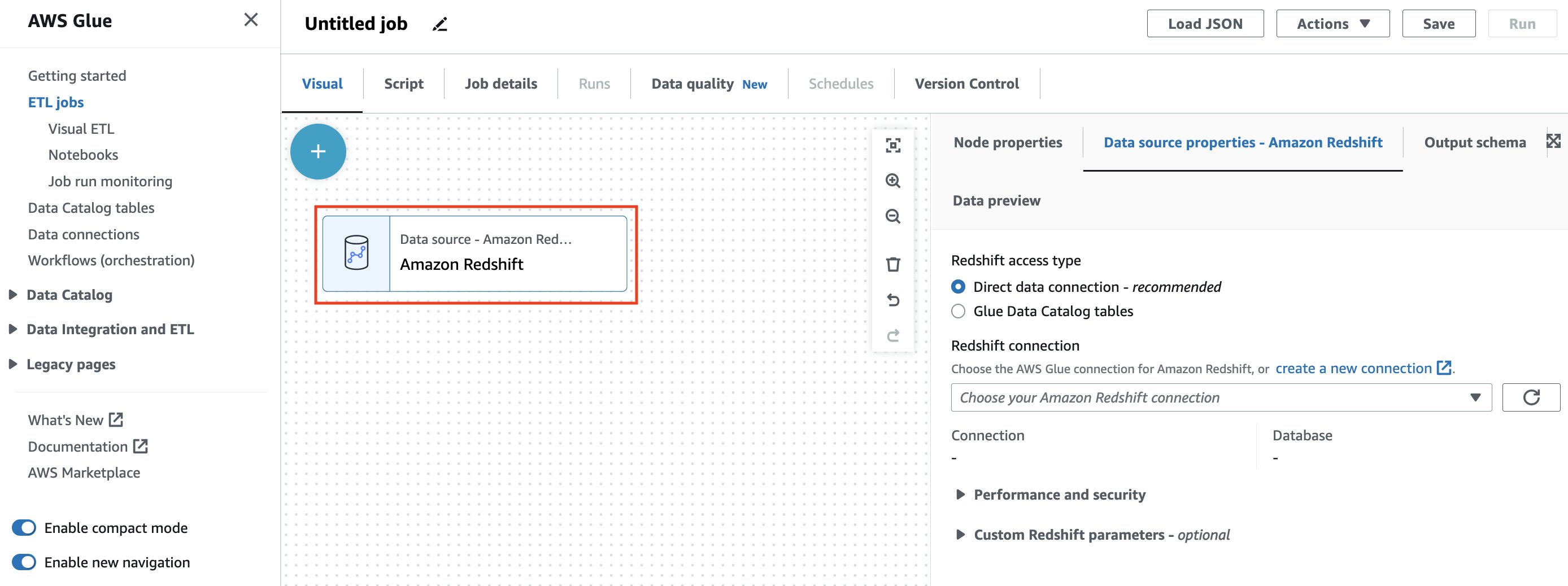
You can choose from two methods of accessing your Amazon Redshift data:
- Direct data connection – This new method allows you to establish a connection to your Amazon Redshift sources without the need to catalog them
- Glue Data Catalog tables – This method requires you to have already crawled or generated your Amazon Redshift tables in the AWS Glue Data Catalog
For this post, we use the Direct data connection option.
- For Redshift access type, select the Direct data connection.
- For Redshift connection, choose your AWS Glue Connection
redshift-demo-blog-connectioncreated in the CloudFormation stack.

Specifying the connection automatically configures all the network related details along with the name of the database you wish to connect to.
The UI then presents a choice on how you’d like to access the data from within your selected Amazon Redshift cluster’s database:
- Choose a single table – This option lets you select a single schema, and a single table from your database. You can browse through all of your available schemas and tables right from the AWS Glue Studio visual editor itself, which makes choosing your source table much easier.

- Enter a custom query – If you’re looking to perform your ETL on a subset of data from your Amazon Redshift tables, you can author an Amazon Redshift query from the AWS Glue Studio UI. This query will be passed to the connected Amazon Redshift cluster, and the returned query result will be available in downstream transformations on AWS Glue Studio.
For the purposes of this post, we write our own custom query that joins data from the preloaded event table and venue table.
- Select Enter a custom query and enter the following query into the query editor:
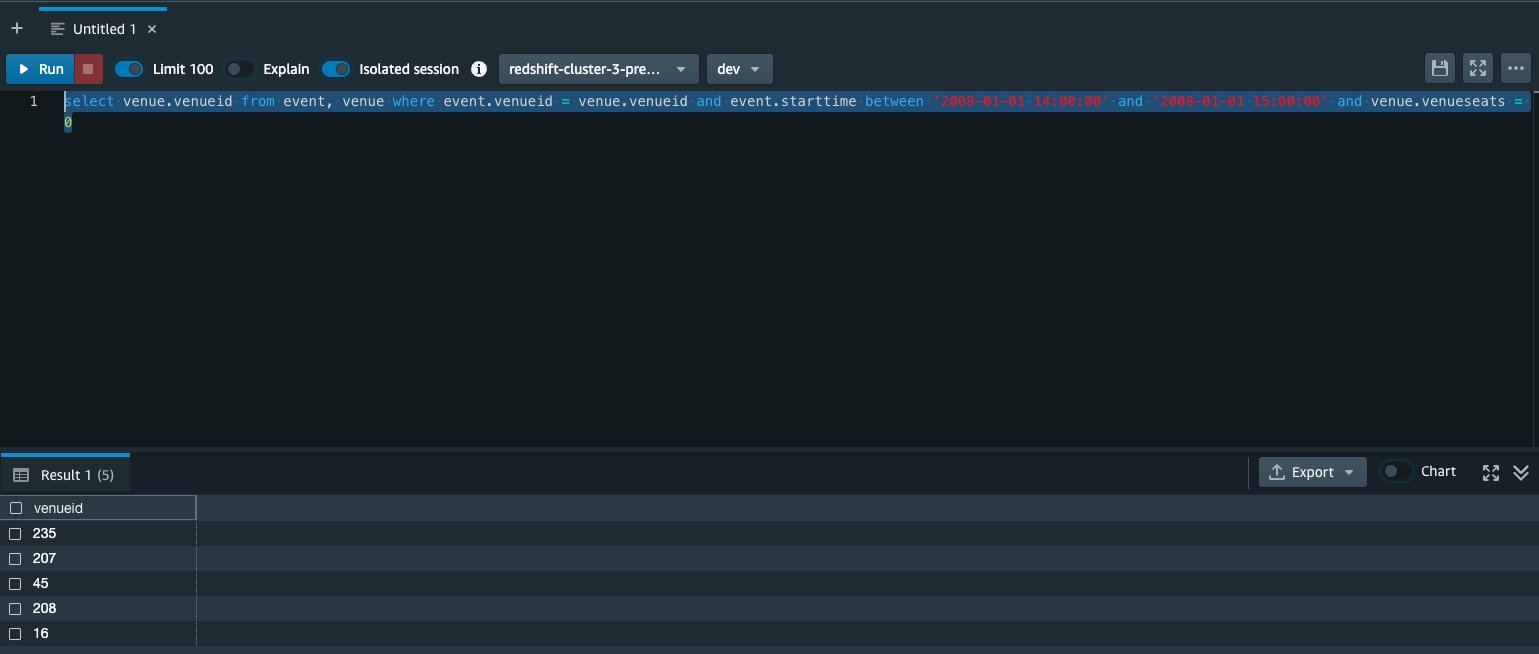
The intent of this query is to gather the venueid of locations that have had an event between 2008-01-01 14:00:00 and 2008-01-01 15:00:00 and have had venueseats = 0. If we run a similar query from the Amazon Redshift Query Editor, we can see that there are actually five such venues within that time frame. We wish to merge this data back into Amazon Redshift without including these rows.
- Choose Infer schema, which allows the AWS Glue Studio visual editor to understand the schema from the returned columns from your query.

You can see the schema on the Output schema tab.
- Under Performance and security, for S3 staging directory, choose the S3 temporary directory location created by the CloudFormation stack ( RedshiftS3TempPath ).
- For IAM role, choose the IAM role specified by RedshiftIamRoleARN in the CloudFormation stack.

Now we’re going to add a transform to drop duplicate rows from our join result. This will ensure that the MERGE operation in the following steps won’t have conflicting keys when performing the operation.
- Choose the Drop Duplicates node to view the node properties.

- On the Transform tab, for Drop duplicates, select Match specific keys.
- For Keys to match rows, choose
venueid.

In this section, we defined the steps to read the output of a custom JOIN query. We then dropped the duplicate records from the returned value. In the next section, we explore the write path on the same job.
Exploring Amazon Redshift writes
Now we go over the enhancements for writing to Amazon Redshift as a destination. This section goes over all the simplified options for writing to Amazon Redshift, but highlights the new Amazon Redshift MERGE capabilities for the purposes of this post.
The MERGE operator offers great flexibility for conditionally merging rows from a source into a destination table. MERGE is powerful because it simplifies operations that traditionally were only achievable by using multiple insert, update, or delete statements separately. Within AWS Glue Studio, particularly with the custom MERGE option, you can define a more complex matching condition to handle finding the records to update.
- From the canvas page of the job used in the previous section, select Amazon Redshift to add an Amazon Redshift node of type Target.

When you close the selector, you should see your Amazon Redshift target node added on the Amazon Glue Studio canvas, along with possible options.
- For Redshift access type, select Direct data connection.
Similar to the Amazon Redshift source node, the Direct data connection method allows you to write directly to your Amazon Redshift tables without needing to have them cataloged within the AWS Glue Data Catalog.
- For Redshift connection, choose your AWS Glue connection
redshift-demo-blog-connectioncreated in the CloudFormation stack.

- For Schema, choose public.

- For Table, choose the venue table as the destination Amazon Redshift table where we will store the merged data.
- Choose MERGE data into target table.
This selection provides the user with two options:
- Choose keys and simple actions – This is a user-friendly version of the MERGE operation. You simply specify the matching keys, and choose what happens to the rows that match the key (update them or delete them) or don’t have any matches (insert them).
- Enter custom MERGE statement – This option provides the most flexibility. You can enter your own custom logic for MERGE.
For this post, we use the simple actions method for performing a MERGE operation.
- For Handling of data and target table, select MERGE data into target table, and then select Choose keys and simple actions.
- For Matching Keys, select
venueid.
This field will become our MERGE condition for checking keys
- For When matched, select the Delete record in the table
- For When not matched, select Insert source data as a new row into the table

With these selections, we’ve configured the AWS Glue job to run a MERGE statement on Amazon Redshift while inserting our data. Moreover, for performing this MERGE operation, we use the as the key (you can select multiple keys). If there is a key match with the destination table’s record, we delete that record. Otherwise, we insert the record into the destination table.
- Navigate to the Job details tab.
- For Name, enter a name for the job.
- For the IAM Role drop down, select the RedshiftIamRole role that was created via the CloudFormation template.
- Choose Save.

- Choose Run and wait for the job to finish.
You can track its progress on the Runs tab.
- After the run reaches a successful state, navigate back to the Amazon Redshift Query Editor.
- Run the same query again to discover that those rows have been deleted in accordance to our MERGE specifications.

In this section, we configured an Amazon Redshift target node to write a MERGE statement to conditionally update records in our destination Amazon Redshift table. We then saved and ran the AWS Glue job, and saw the effect of the MERGE statement on our destination Amazon Redshift table.
Other available write options
In addition to MERGE, the AWS Glue Studio visual editor’s Amazon Redshift destination node also supports a number of other common operations:
- APPEND – Appending to your target table performs an insert into the selected table without updating any of the existing records (if there are duplicates, both records will be retained). In cases where you want to update existing rows in addition to adding new rows (often referred to an UPSERT operation), you can select the Also update existing records in target table option. Note that both APPEND only and UPSERT (APPEND with UPDATE) are a simpler subset of the MERGE functionality discussed earlier.
- TRUNCATE – The TRUNCATE option clears all the data in the existing table but retains all the existing table schema, followed by an APPEND of all new data to the empty table. This option is often used when the full dataset needs to be refreshed and downstream services or tools depend on the table schema being consistent. For example, every night an Amazon Redshift table needs to be fully updated with the latest customer information that will be consumed by an Amazon QuickSight dashboard. In this case, the ETL developer would choose TRUNCATE to ensure the data is fully refreshed but the table schema is guaranteed not to change.
- DROP – This option is used when the full dataset needs to be refreshed and the downstream services or tools that depend on the schema or systems can handle possible schema changes without breaking.
How write operations are being handled on the backend
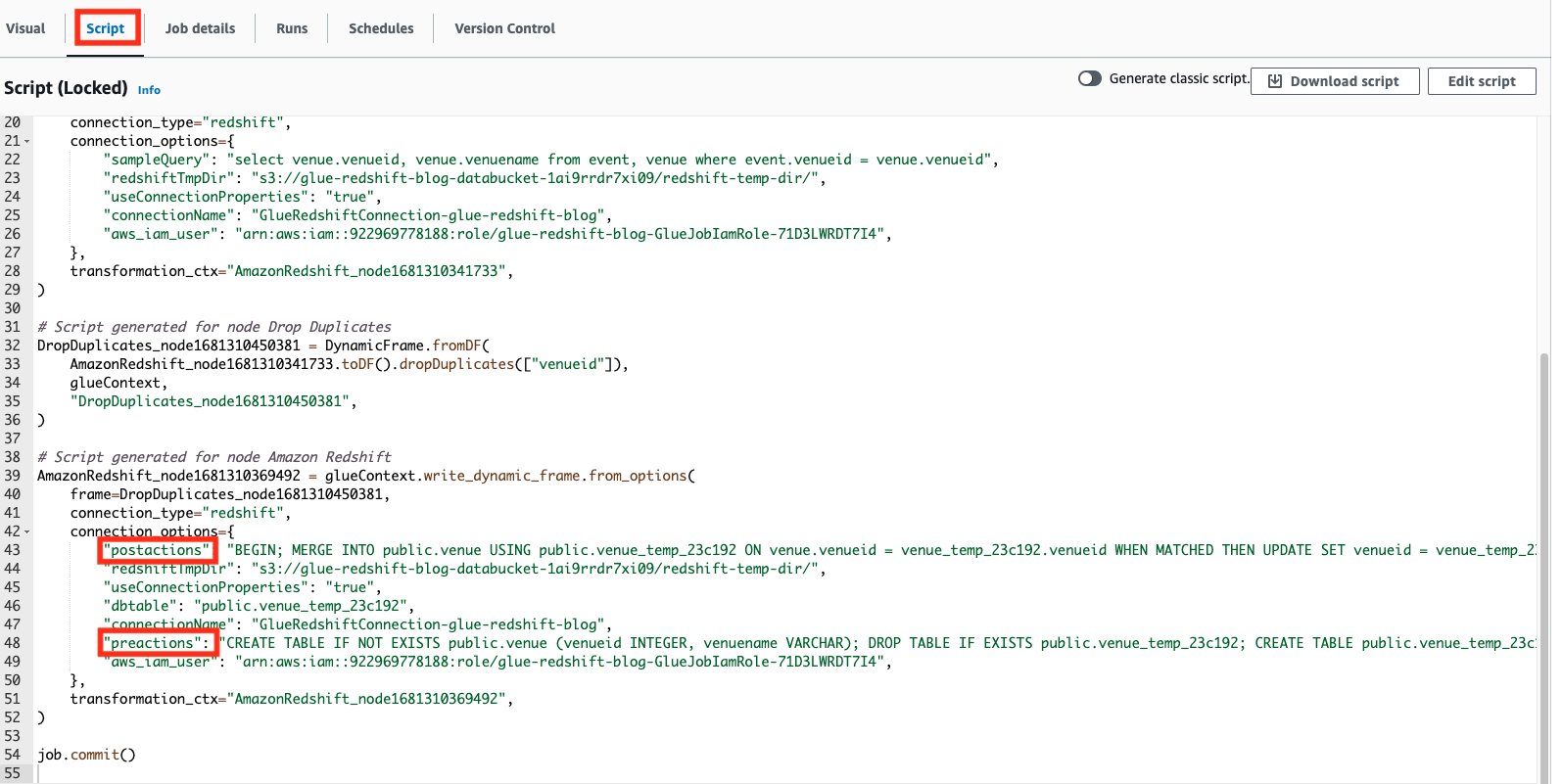
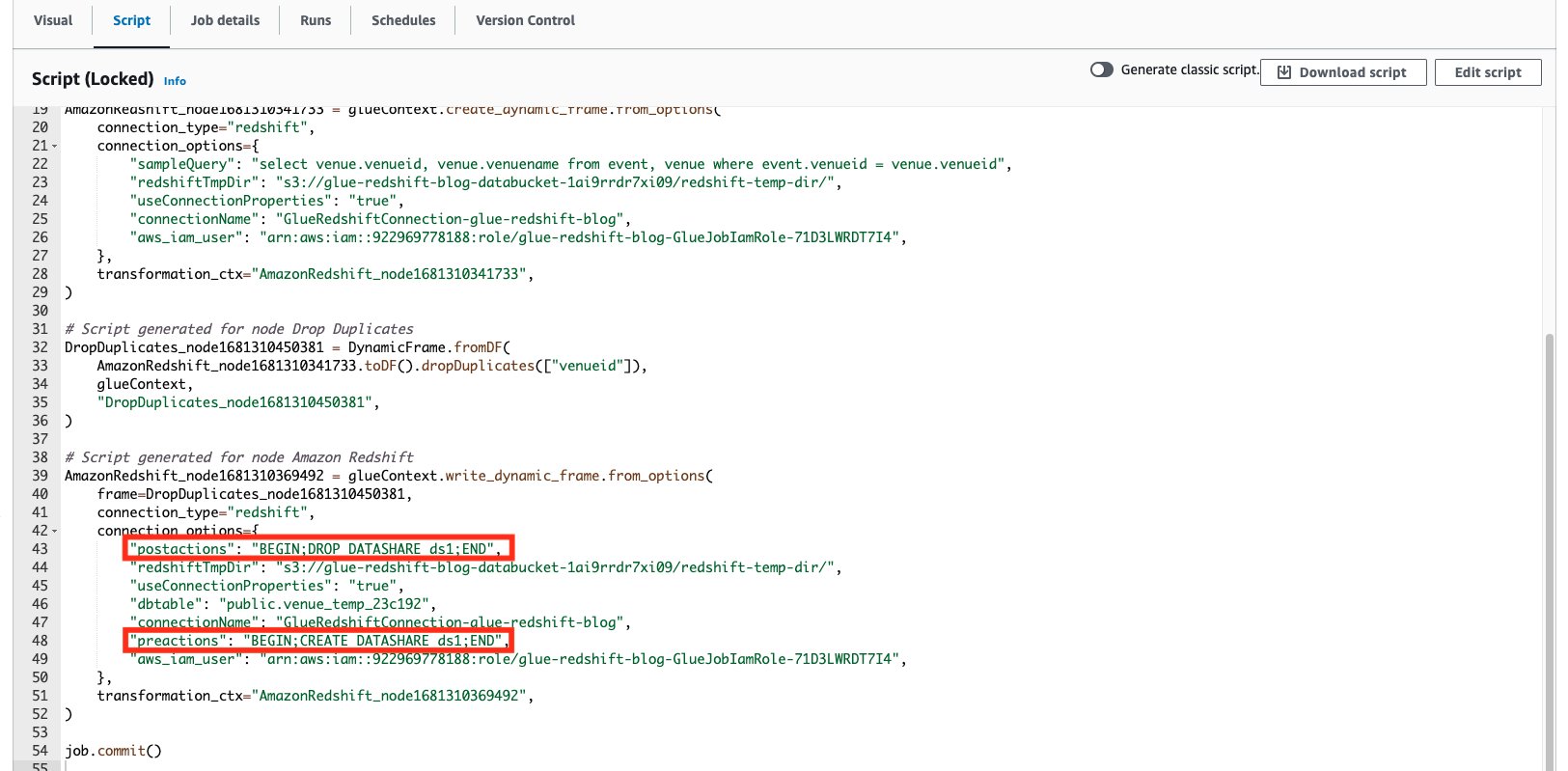
The Amazon Redshift connector supports two parameters called preactions and postactions. These parameters allow you to run SQL statements that will be passed on to the Amazon Redshift data warehouse before and after the actual write operation is carried out by Spark.
On the Script tab on the AWS Glue Studio page, we can see what SQL statements are being run.
Use a custom implementation for writing data into Amazon Redshift
In the event that the provided presets require more customization, or your use case requires more advanced implementations for writing to Amazon Redshift, AWS Glue Studio also allows you to freely select which preactions and postactions can be run when writing to Amazon Redshift.
To show an example, we create an Amazon Redshift datashare as a preaction, then perform the cleaning up of the same datashare as a postaction via AWS Glue Studio.
NOTE: This section is not executed as part of the above blog and is provided as an example.
- Choose the Amazon Redshift data target node.
- On the Data target properties tab, expand the Custom Redshift parameters section.
- For the parameters, add the following:
- Parameter:
preactionswith ValueBEGIN; CREATE DATASHARE ds1; END - Parameter:
postactionswith ValueBEGIN; DROP DATASHARE ds1; END
- Parameter:
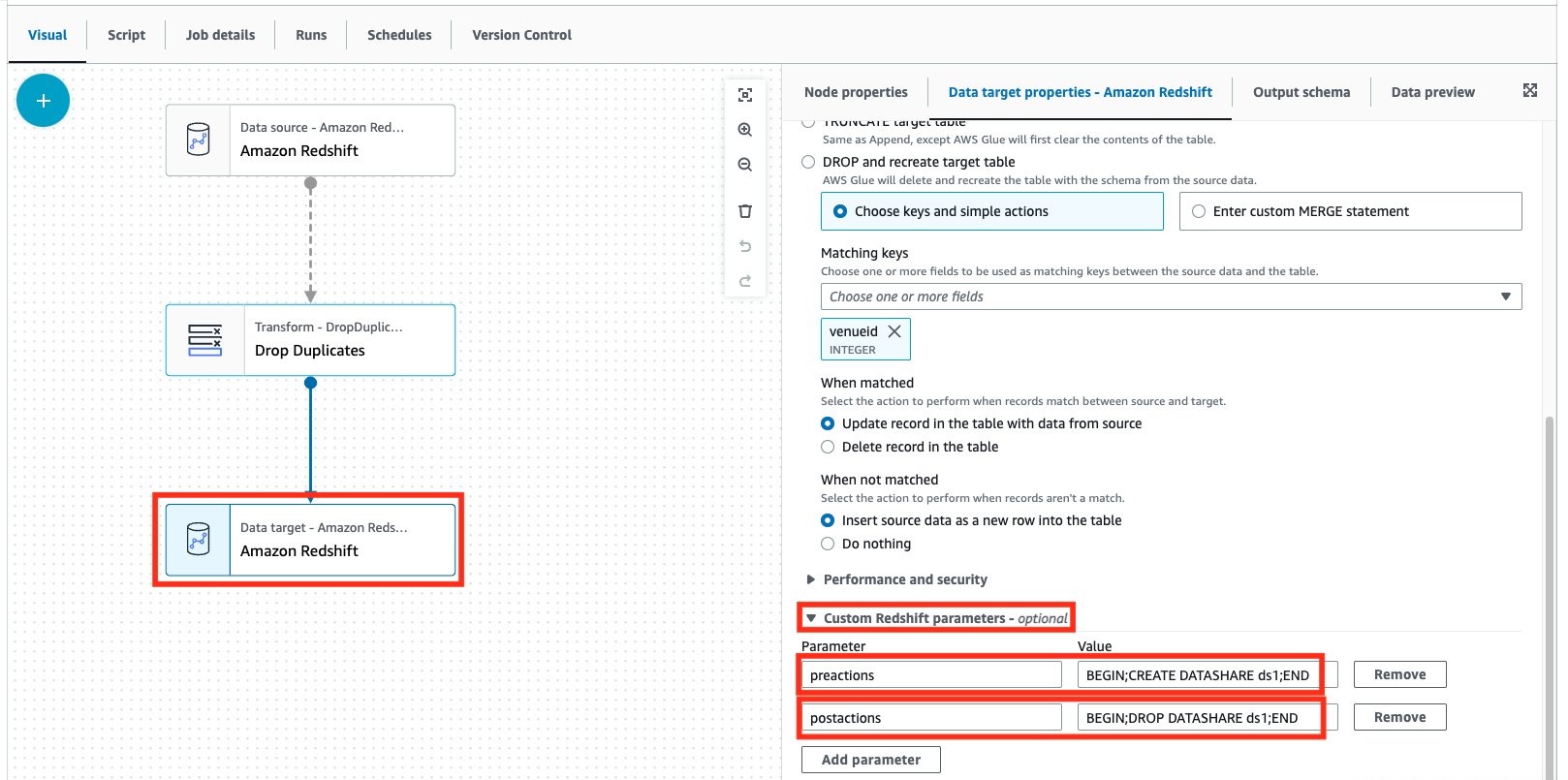
As you can see, we can specify multiple Amazon Redshift statements as a part of both the preactions and postactions parameters. Remember that these statements will override any existing preactions or postactions with your specified actions (as you can see in the following generated code).
Cleanup
To avoid additional costs, make sure to delete any unnecessary resources and files:
- Empty and delete the contents from the S3 temporary bucket
- If you deployed the sample CloudFormation stack, delete the CloudFormation stack via the AWS CloudFormation console. Make sure to empty the S3 bucket before you delete the bucket.
Conclusion
In this post, we went over the new AWS Glue Studio visual options for performing reads and writes from Amazon Redshift. We also saw the simplicity with which you can browse your Amazon Redshift tables right from the AWS Glue Studio visual editor UI, and how to run your own custom SQL statements against your Amazon Redshift sources. We then explored how to perform simple ETL loading tasks against Amazon Redshift with just a few clicks, and showcased the new Amazon Redshift MERGE statement.
To dive deeper into the new Amazon Redshift integrations for the AWS Glue Studio visual editor, check out Connecting to Redshift in AWS Glue Studio.
About the Authors
 Aniket Jiddigoudar is a Big Data Architect on the AWS Glue team. He works with customers to help improve their big data workloads. In his spare time, he enjoys trying out new food, playing video games, and kickboxing.
 Sean Ma is a Principal Product Manager on the AWS Glue team. He has an 18+ year track record of innovating and delivering enterprise products that unlock the power of data for users. Outside of work, Sean enjoys scuba diving and college football.