Amazon Redshift is a fast, fully managed, petabyte-scale data warehouse service that makes it simple and cost-effective to analyze all your data efficiently and securely. Users such as data analysts, database developers, and data scientists use SQL to analyze their data in Amazon Redshift data warehouses. Amazon Redshift provides a web-based Query Editor V2 in addition to supporting connectivity via ODBC/JDBC or the Amazon Redshift Data API.
Amazon Redshift Query Editor V2 makes it easy to query your data using SQL and gain insights by visualizing your results using charts and graphs with a few clicks. With Query Editor V2, you can collaborate with team members by easily sharing saved queries, results, and analyses in a secure way.
Analysts performing ad hoc analyses in their workspace need to load sample data in Amazon Redshift by creating a table and load data from desktop. They want to join that data with the curated data in their data warehouse. Data engineers and data scientists have test data, and want to load data into Amazon Redshift for their machine learning (ML) or analytics use cases.
In this post, we walk through a new feature in Query Editor V2 to easily load data files either from your local desktop or Amazon Simple Storage Service (Amazon S3).
Prerequisites
Complete the following prerequisite steps:
-
- Create an Amazon Redshift provisioned cluster or Serverless endpoint.
- Provide access to Query Editor V2 for your end-users. To enable your users to access Query Editor V2 using IAM, as an administrator, you can attach one of the following AWS-managed policies to the AWS Identity and Access Management (IAM) user or role to grant permission:
- AmazonRedshiftQueryEditorV2FullAccess – Grants full access to the Query Editor V2 operations and resources.
- AmazonRedshiftQueryEditorV2NoSharing – Grants the ability to work with Query Editor V2 without sharing resources.
- AmazonRedshiftQueryEditorV2ReadSharing – Grants the ability to work with Query Editor V2 with limited sharing of resources. The granted principal can read the resources shared with its team but can’t update them.
- AmazonRedshiftQueryEditorV2ReadWriteSharing – Grants the ability to work with Query Editor V2 with sharing of resources. The granted principal can read and update the resources shared with its team.
- Provide access to the S3 bucket to load data from a local desktop file.
- To enable your users to load data from a local desktop using Query Editor V2, as an administrator, you have to specify a common S3 bucket, and the user account must be configured with proper permissions. You can use the following IAM policy as an example to configure your IAM user or role:
- It’s also recommended to have proper separation of data access when loading data files from your local desktop. You can use the following S3 bucket policy as an example to separate data access between users of the staging bucket you configured:
Configure Query Editor V2 for your AWS account
As an admin, you must first configure Query Editor V2 before providing access to your end-users. On the Amazon Redshift console, choose Query editor v2 in the navigation pane.

If you’re accessing Query Editor v2 for the first time, you must configure your account by providing AWS Key Management Service (AWS KMS) encryption and, optionally, an S3 bucket.
By default, an AWS-owned key is used to encrypt resources. Optionally, you can create a symmetric customer managed key to encrypt Query Editor V2 resources such as saved queries and query results using the AWS KMS console or AWS KMS API operations.
The S3 bucket URI is required when loading data from your local desktop. You can provide the S3 URI of the same bucket that you configured earlier as a prerequisite.

If you have previously configured Query Editor V2 with only AWS KMS encryption, you can choose Account Settings after launching the interface to update the S3 URI to support loading from your local desktop.

Load data from your local desktop
Users such as data analysts, database developers, and data scientists can now load local files up to 5 MB in size into Amazon Redshift tables from Query Editor V2, without using the COPY command. The supported data formats are CSV, JSON, DELIMITER, FIXEDWIDTH, SHAPEFILE, AVRO, PARQUET, and ORC. Complete the following steps:
-
-
- On the Amazon Redshift console, navigate to Query Editor V2.
- Click on Load data.

- Choose Load from local file and Browse to choose a local file. You can download the student\_info.csv file to use as an example.
- If your file has column headers as the first row, keep the default selection of Ignore header rows as
1to ignore first row. - If your file has date columns, choose Data conversion parameters.

- Select Date format, set it to
autoand choose Next.

- Choose Load new table to automatically infer the file schema.
- Specify the values for Cluster or workgroup, Database, Schema, and Table (for example,
Student\_info) to load data to. - Choose Create table.

-
A success message appears that the table was created. Now you can load data into the newly created table from a local file.
-
-
- Choose Load data.

- Choose Load data.
-
A message appears that the data load was successful.
-
-
- Query the
Student\_infotable to see the data.

- Query the
-
Load data from Amazon S3
You can easily load data from Amazon S3 into an Amazon Redshift table using Query Editor V2. Complete the following steps:
-
-
- On the Amazon Redshift console, launch Query Editor V2 and connect to your cluster.
- Browse to the database name (for example,
dev), thepublicschema, and expand Tables. - You can automatically infer the schema of a S3 file similar to Load from local file option shown above however for this demo, we will also show you how to load data to an existing table. Run the following
create tablescript to make a sample table (for this example,public.customer):
-
-
-
- Choose Load data.

- Choose Load from S3 bucket.
- For this post, we load data from the TPCH Sample data GitHub repo, so for the S3 URI, enter
s3://redshift-downloads/TPC-H/2.18/10GB/customer.tbl. - For S3 file location, choose
us-east-1. - For File format, choose
Delimiter. - For Delimiter character, enter
|.

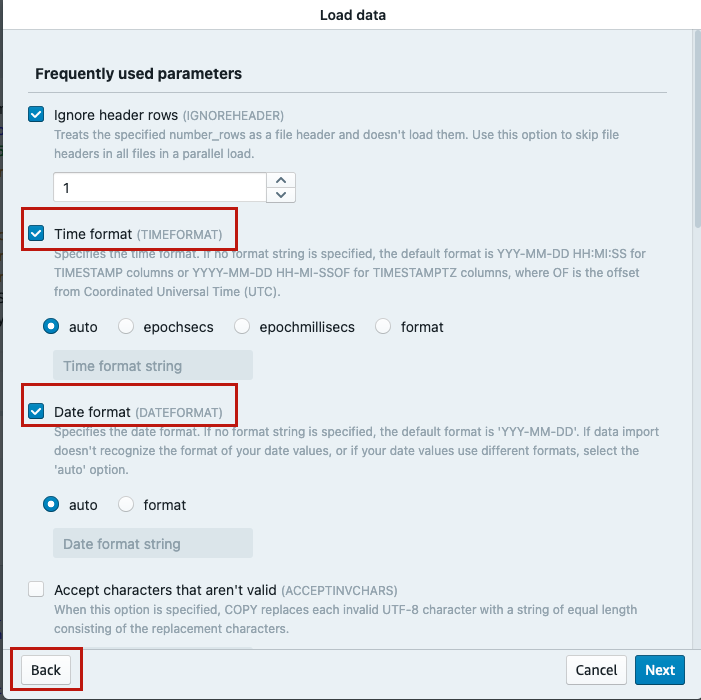
- Choose Data conversion parameters, then select Time format and Date format as
auto. - Choose Back.
- Choose Load data.
-
Refer to Data conversion parameters for more details.
-
-
- Choose Load operations.
- Select Automatic update for compression encodings.
- Select Stop loading when maximum number of errors has been exceeded and specify a value (for example,
100). - Select Statistics update and ON, then choose Next.
-
Refer to Data load operations for more details.

-
-
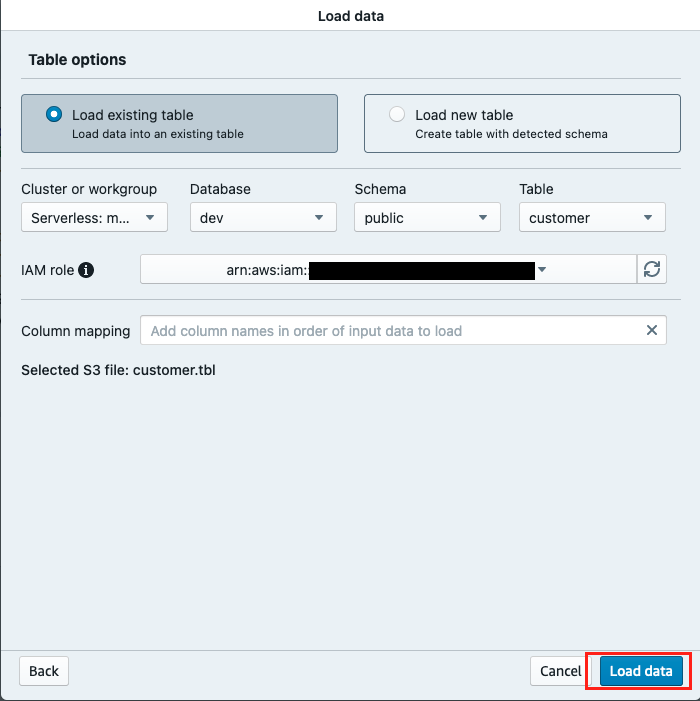
- Choose Load existing table.
- Specify the Cluster or workgroup, Database, Schema (for example,
public) and Table name (for example,customer). - For IAM role, choose a suitable IAM role.
- Choose Load data.
-
Query Editor V2 generates the COPY command and runs it on the Amazon Redshift cluster. The results of the COPY command are displayed in the Result section upon completion.

Conclusion
In this post, we showed how Amazon Redshift Query Editor V2 has simplified the process to load data into Amazon Redshift from Amazon S3 or your local desktop, thereby accelerating the data analysis. It’s an easy-to-use feature that your teams can start using to load and query datasets. If you have any questions or suggestions, please leave a comment.
About the Authors
 Raks Khare is an Analytics Specialist Solutions Architect at AWS based out of Pennsylvania. He helps customers architect data analytics solutions at scale on the AWS platform.
 Tahir Aziz is an Analytics Solution Architect at AWS. He has worked with building data warehouses and big data solutions for over 13 years. He loves to help customers design end-to-end analytics solutions on AWS. Outside of work, he enjoys traveling and cooking.
 Erol Murtezaoglu, a Technical Product Manager at AWS, is an inquisitive and enthusiastic thinker with a drive for self-improvement and learning. He has a strong and proven technical background in software development and architecture, balanced with a drive to deliver commercially successful products. Erol highly values the process of understanding customer needs and problems, in order to deliver solutions that exceed expectations.
 Sapna Maheshwari is a Sr. Solutions Architect at Amazon Web Services. She has over 18 years of experience in data and analytics. She is passionate about telling stories with data and enjoys creating engaging visuals to unearth actionable insights.
 Karthik Ramanathan is a Software Engineer with Amazon Redshift and is based in San Francisco. He brings close to two decades of development experience across the networking, data storage and IoT verticals. When not at work he is also a writer and loves to be in the water.
 Albert Harkema is a Software Development Engineer at AWS. He is known for his curiosity and deep-seated desire to understand the inner workings of complex systems. His inquisitive nature drives him to develop software solutions that make life easier for others. Albert’s approach to problem-solving emphasizes efficiency, reliability, and long-term stability, ensuring that his work has a tangible impact. Through his professional experiences, he has discovered the potential of technology to improve everyday life.